

Tune your Pi agent with Sovara
How to tune Pi agents in a fun, simple and fine-grained way.

We’ve been playing around with the Pi agent harness for a while now and integrated it into our Sovara chat last week. Pi initially became famous as the harness behind OpenClaw but is interesting beyond that, as it shows how minimal harness designs can be highly effective. In the Sovara chat, it’s been awesome at answering user queries, running automations and using the Sovara app in general. Pi is open source; you can check it out on GitHub.
Of course, we also used Sovara to inspect and tune Pi itself! Beyond the chat, Sovara visualizes agent traces and gives you AI tools to understand what happened. You can also create “lessons”: fine-grained, situation-specific instructions, like how to navigate data stores, task-specific definitions, or simple preferences and nudges.
In larger organizations, we often see hundreds of lessons, with some going stale or contradicting each other. Sovara’s goal is to make their management as low-effort and as little error-prone as possible. If you’re just tinkering with a hobby project, think of Sovara as an app that lets you tune your agent and makes managing its knowledge as easy and fun as possible.
Here’s how to try it out and tune your Pi in 5 minutes:
Get set up and visualize your first Pi trace
First, you need to install Sovara on your laptop:
Also configure a helper model in the Sovara app: go to Organization settings → Tooling models → enter an API key.
If you do not have Pi already, install it from your terminal:
npm install -g --ignore-scripts @earendil-works/pi-coding-agentAlso install the Sovara Pi extension:
pi install npm:@sovara/piThen start Pi in an empty project folder:
mkdir sovara-pi-quickstart
cd sovara-pi-quickstart
pi
Use
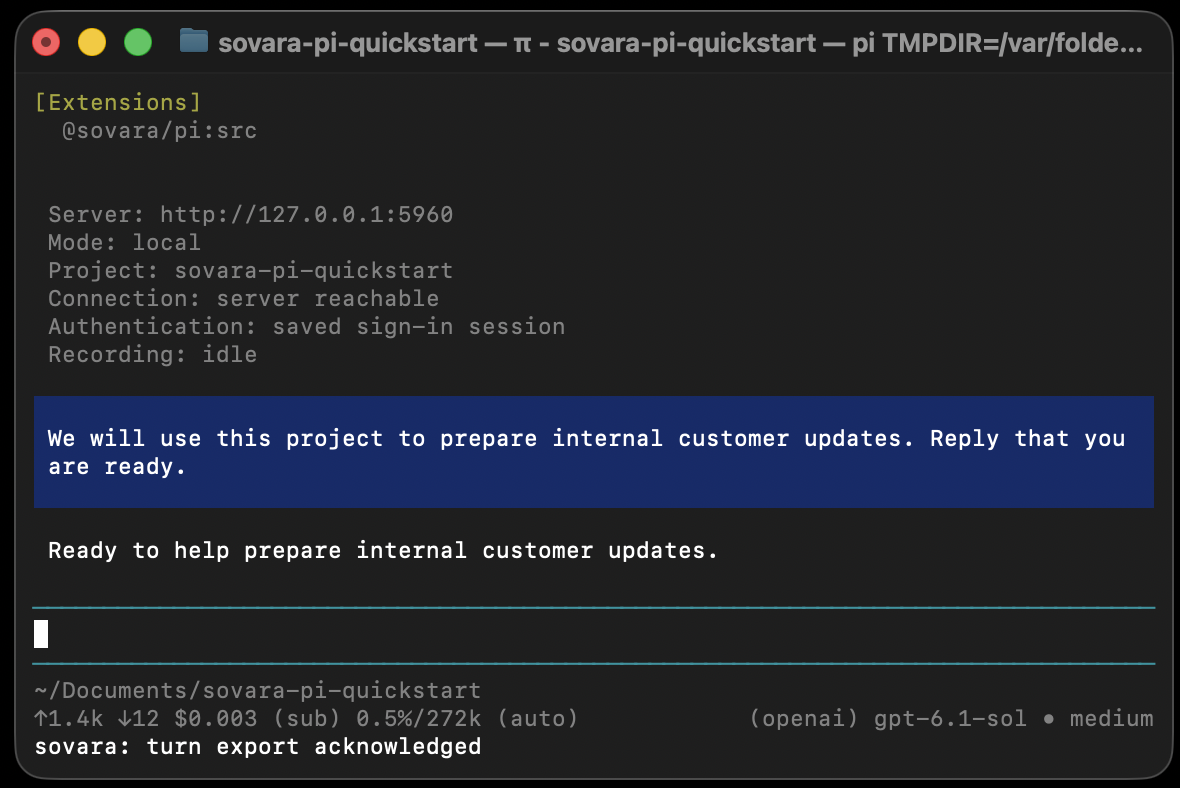
/loginto connect your model provider and/modelto select a model. If Pi was already running when you installed the extension, use/reload. The/sovaracommand shows the connection, project and recording status.The extension uses the connection selected in Sovara Desktop and names the project after the folder by default. Send a short message to create the first recorded interaction:
We will use this project to prepare internal customer updates. Reply that you are ready.Open
sovara-pi-quickstartin Sovara Desktop. Click on Traces in the sidebar and you will see your first recorded trace:
Teach Pi a lesson
Now, let’s teach Pi something. Imagine a team is preparing their monthly customer update. In this team, “active customer” has a specific meaning:
A paying organization with a live production deployment. Trials, pilots and internal demo accounts do not qualify.
The agent cannot know that the team has agreed on this definition, so let’s tell it with a lesson:
Open Lessons, click New proposal for changes, then New Lesson. Create this lesson:
- Title
- Active customer definition
- When to use
- When preparing internal customer updates or reporting active customers.
- Content
- For internal customer updates, an active customer is a paying organization with a live production deployment. Exclude trials, pilots and internal demo accounts. Count each organization once.
Click Save changes, then Close lesson.
Back in the proposal, click Apply to production, then Apply anyways.
Test the lesson in a new chat
The definition now lives in Sovara. To check that Pi picks it up, start a fresh session in Pi with
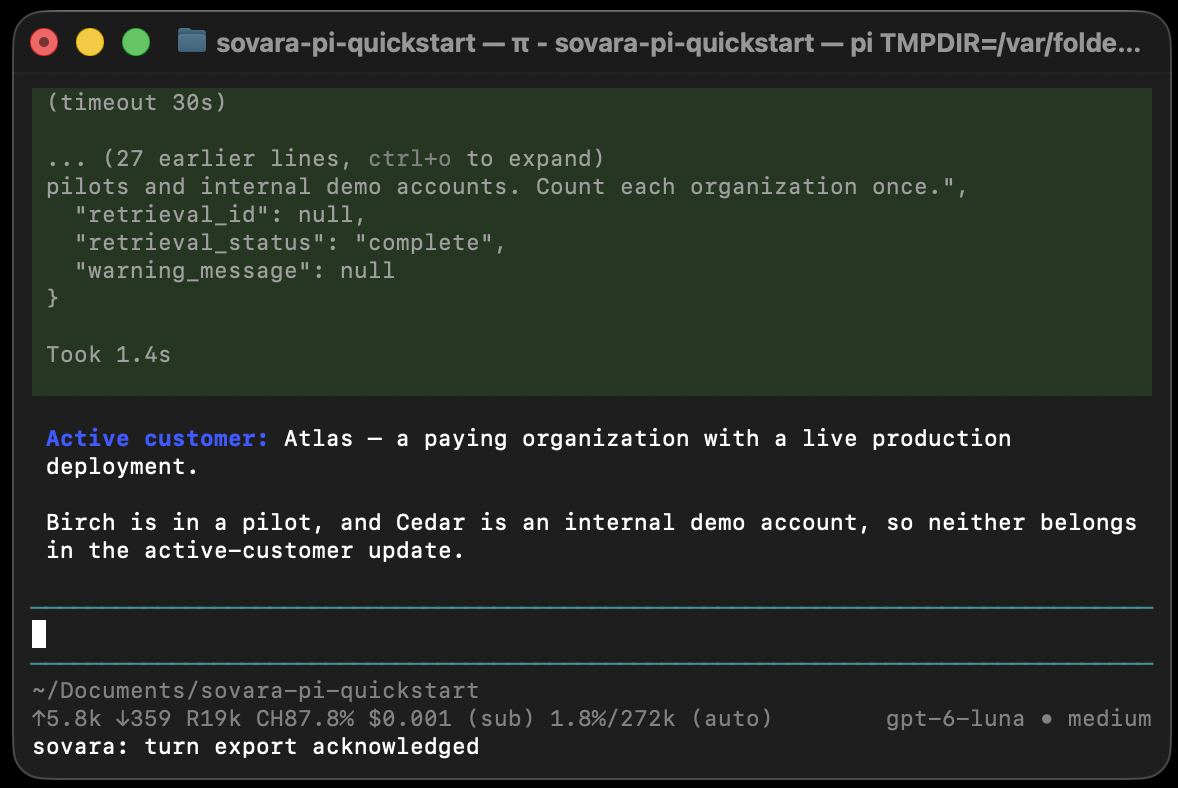
/newand ask for a customer update without repeating the rule:Draft a short internal update on our active customers. Here are the current accounts: Atlas: paying organization, live production deployment. Birch: paying organization, pilot deployment. Cedar: internal demo account, live deployment. Explain which organizations belong in the update.Now read Pi’s reply in the terminal. It should answer that only Atlas was included and explain why Birch and Cedar are excluded: a paid pilot is still a pilot, and an internal demo is not a customer.
Back in the Sovara app, open Traces and select the new Pi session. Expand the model step that produced the answer, then expand the lesson-applied indicator. You should see how Sovara applied the Active customer definition at that step.
Keep going!
The customer definition is a small example of a much broader need. Teams have their own terminology, reporting rules and exceptions to everyday processes. Making that knowledge available to an agent should not require someone to repeat it in every request. With this integration, a lesson can live in Sovara and reach Pi when it is relevant.
For us, that is the interesting part of this integration: a team’s knowledge can travel with the agent’s work, and we can see where it helped. Pi provides the extension points; Sovara provides the lessons and the trace that makes their use inspectable.
The Sovara Pi extension is open source. Try it with one convention from your own team, then open the trace and see what Pi did with it.